
Single Sign On Quick Steps to login at adobe.com
Go to adobe.com → Sign in → More sign‑in options → Continue with Microsoft.
Do not enter your email first.
Do not enter your email first.
Step 1: Go to Adobe
- Open a web browser.
- Go to https://www.adobe.com
- Click Sign in (top‑right corner).
Step 2: Do NOT enter your email
- You will see a screen asking for an email address.
- Do not type your email here.
- Do not click Continue.
This screen is for personal Adobe accounts.
Step 3: Click “More sign‑in options”
- On the sign‑in screen, scroll down.
- Click More sign‑in options
(this link is below Google, Facebook, and Apple).
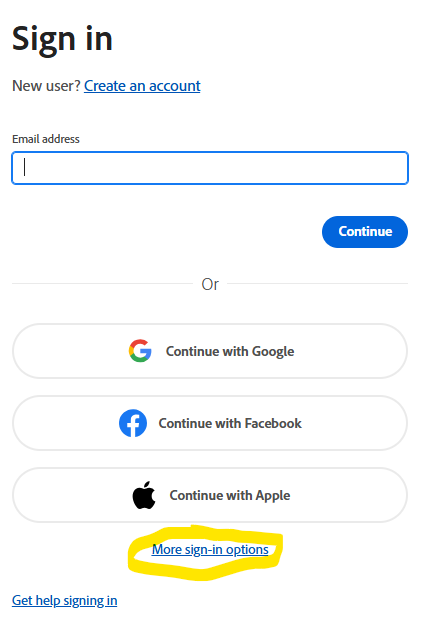
Step 4: Choose Microsoft
- A new list of sign‑in options appears.
- Click Continue with Microsoft.
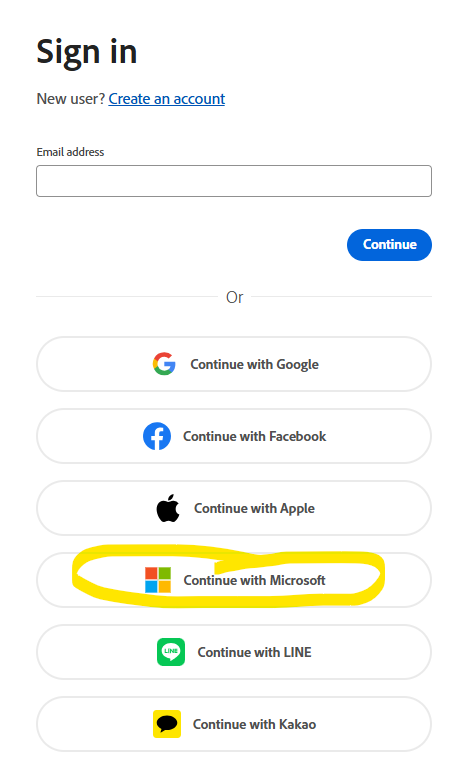
Step 5: Sign in with Microsoft
- You are redirected to the Microsoft sign‑in page.
- Enter your work or school email address.
- Enter your password.
- Complete multi‑factor authentication (if prompted).